Pick a finished track
Open clip creation and choose a song from your Orphix library. If the track is still generating, wait until its audio is ready.
YOUR SOUND · YOUR FRAME
Made a track in Orphix? Choose a portrait, a visual style, and the moment of the song you want to use. The app turns those choices into a video clip you can watch and share.
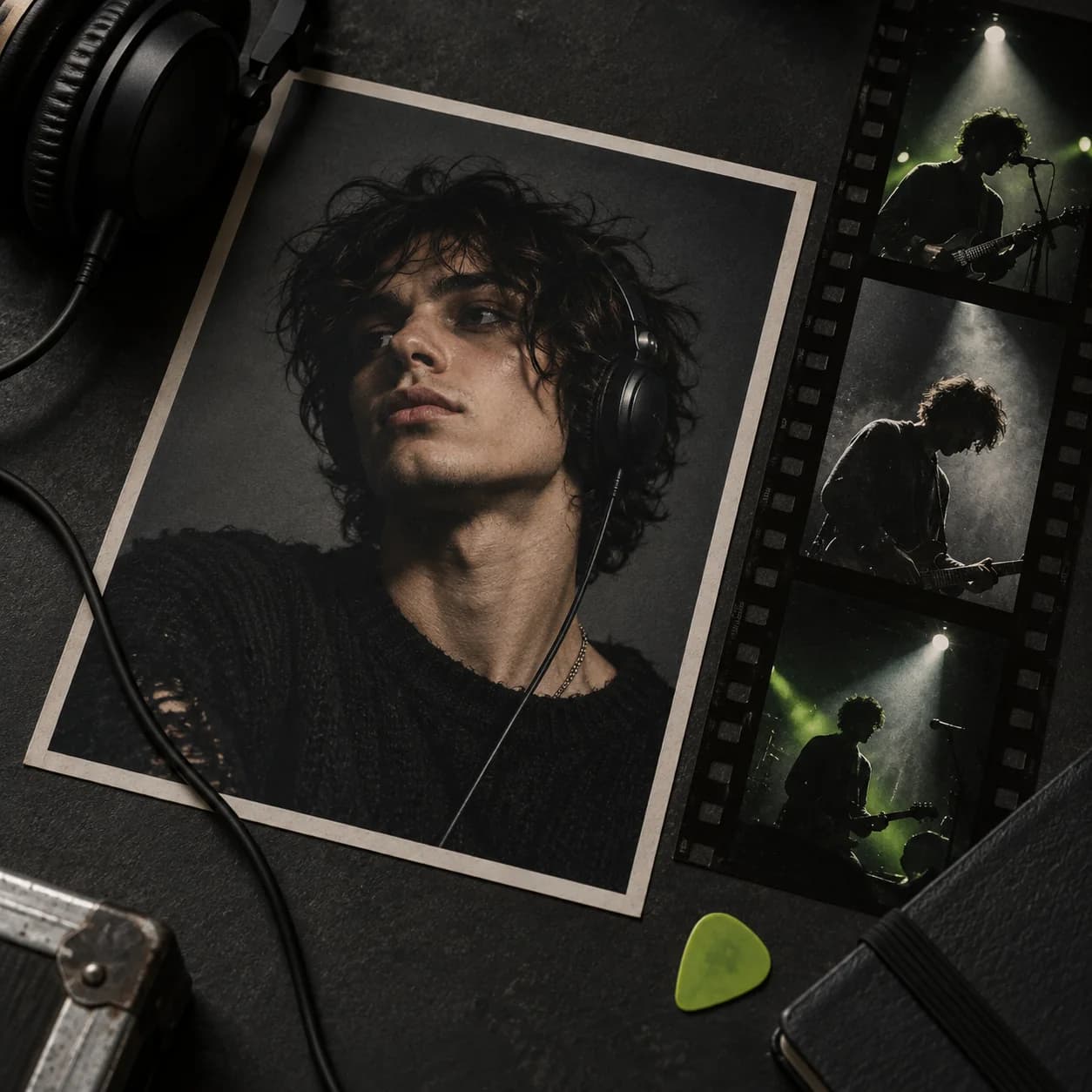
01 / FROM SONG TO SCREEN
Clips are made in the mobile app from finished tracks. You choose the music and visual direction before generation begins.
Open clip creation and choose a song from your Orphix library. If the track is still generating, wait until its audio is ready.
Choose a portrait from your gallery or take a photo with the camera. Then select one of the available visual presets for the clip.
Set an available duration and song segment on the waveform. Check the credit cost, create the clip, and share it once processing finishes.
02 / CLIP IDEAS
These are concepts for your own clip, not rendered video demos or preset names. The app shows the styles and durations currently available.
Track: a song for your friends. Portrait: a well-lit photo with a clear face. Segment: the chorus everyone remembers. Style: choose a visual preset in the app.
Preview the selected section before creating the clip. A familiar line may work better than the intro.
Track: a song about an evening you remember. Portrait: a photo of the person at the heart of the story. Segment: the verse or chorus that says the most. Style: pick a preset that fits the mood.
Your portrait and song set the direction; the final visuals depend on the preset and generation.
The ideas above are not video demos. You can hear separate tracks made with Orphix on the home page.
Hear real tracks03 / BEFORE YOU CREATE
A few small choices help you select your source material and check what part of the song goes into the video.
A clip needs a track with playable audio. If your song is still an idea, make the track first, then come back to its video.
Pick a photo where the face is easy to see. You can use your gallery or take a new photo with the app's front camera.
Before starting, choose the clip's starting point and an available duration, then preview the selected part of the song.
04 / FAQ
Yes. Choose a finished track from your library, then add a portrait, visual preset, and song segment. Your clip will appear in the Clips section after creation.
The photo is used to make a video clip for an existing track. To make music, create a song in Orphix first and add video afterward.
Yes. You can choose an available duration and move the selected song segment in the clip editor. Depending on the track length, the app may also offer a full-track option.
The credit cost depends on the selected duration and appears in the app before you create the clip. Review it there before starting generation.
Yes. Once the clip is ready, open it in the app and use Share to send a link.
THE NEXT FRAME IS YOURS
Download Orphix, choose a finished track, and create its video clip in the app.